> For the complete documentation index, see [llms.txt](https://docs.copia.io/docs/llms.txt). Markdown versions of documentation pages are available by appending `.md` to page URLs; this page is available as [Markdown](https://docs.copia.io/docs/devicelink/basic/siemens-scalance.md).
# Siemens SCALANCE
Copia can back up the configuration of Siemens SCALANCE network switches. On each backup, the Copia Agent signs in to the switch, asks it to export its configuration, and saves the files to your Copia repository. Copia compares every backup with the one before, so you can see what changed on the switch and when.
## Supported switches
| Switch models | CLI Dialect |
| ------------------------------- | ----------- |
| XB, XC, XP, XR, XM and W models | IOS |
| X-200, X-300 and X-400 | Legacy |
The two families use different command lines. The Agent detects which one your switch uses, so you do not need to choose.
## How a backup works
1. The Agent connects to the switch over SSH and signs in with the username and password you enter in Copia.
2. The Agent asks the switch to send its configuration to the Agent machine.
3. The switch sends the files to the Agent machine over TFTP, a simple file transfer built into the switch.
4. Copia saves the files and compares them with the previous backup.
Steps 1, 2 and 4 go out from the Agent machine. Step 3 comes in to it.
## Agent Requirements
Check these before you create the project. Most failed first backups come from one of them.
**On the switch:**
* SSH is turned on. Telnet also works, but it sends the password unencrypted.
* You have the username and password of an **administrator** account on the switch.
* You have signed in with that account at least once. A new or reset switch asks you to change the default admin password at the first sign-in, and backups cannot run until you do.
**On the Agent machine:**
* The Copia Agent is version 1.0.38 or later.
* The Agent machine can reach the switch, **and the switch can send to the Agent machine**. This is the case when the Agent machine is on the plant network, even if people use a VPN to reach it.
* Windows Firewall allows the switch's files in. See [Allow SCALANCE backups through Windows Firewall](#allow-scalance-backups-through-windows-firewall) below.
### Allow SCALANCE backups through Windows Firewall
You need a Windows administrator for this, once per Agent machine.
The switch sends its files to UDP port 69 unless you set a different **TFTP Port** in the device settings. Use 69 unless another program on the Agent machine already uses it, such as another TFTP server. In that case, choose a free port, for example `10069`, enter it as the device's TFTP Port, and use it instead of 69 below. To check whether port 69 is in use, run `Get-NetUDPEndpoint -LocalPort 69` in PowerShell. No output means it is free.
1. On the Agent machine, press the Windows key, type **Windows Defender Firewall with Advanced Security**, and open it.
2. In the left pane, click **Inbound Rules**. In the right pane, click **New Rule...**.
3. Choose **Port** and click **Next**.
4. Choose **UDP**, choose **Specific local ports**, enter `69`, and click **Next**.
5. Choose **Allow the connection** and click **Next**.
6. Leave **Domain**, **Private** and **Public** ticked and click **Next**.
7. Name the rule `Copia Agent TFTP` and click **Finish**.
If you prefer a command, open PowerShell as administrator and run:
```powershell
New-NetFirewallRule -DisplayName "Copia Agent TFTP" -Direction Inbound -Protocol UDP -LocalPort 69 -Action Allow
```
{% hint style="info" %}
The Agent only listens on this port while a SCALANCE backup is running, and only accepts files from the switch being backed up.
If there is a firewall between the switch and the Agent machine, ask your network team to allow UDP on the same port from the switch to the Agent machine.
{% endhint %}
### Verify the Agent machine can sign in to the switch
This optional check takes a minute and confirms the address, username and password before the first backup.
1. On the Agent machine, open **Command Prompt**.
2. Type `ssh admin@192.168.1.20`, using your switch's username and IP address, and press Enter. If you entered a port in the Communication Path, add it with `-p`, for example `ssh -p 2222 admin@192.168.1.20`.
3. The first time, Windows asks if you want to continue connecting. Type `yes` and press Enter.
4. Enter the password. If you see the switch's prompt, the details are correct. Type `exit` to leave.
If this fails, fix it first: the backup will fail the same way. If Command Prompt says `'ssh' is not recognized`, this version of Windows has no SSH client, so skip this check.
## Project Configuration
To configure a SCALANCE project, you need a repository with a folder to store the switch's backups. Give each switch its own folder, named after the switch.
{% hint style="info" %}
The folder can be made during the project creation process.
{% endhint %}
Click either of the *Add a Project* buttons in the Projects tab.
The *Add a new project* configuration dialog will appear which allows you to fully configure the project, devices and job for the project.
{% hint style="info" %}
Any items highlighted with an asterisk are required.
{% endhint %}
### Define the Project
Select **Siemens SCALANCE** as the *Project Type*, then select an *Agent*. If you have not created an Agent yet, you can assign one later. See the [Agents](/docs/devicelink/sitesandagents/agents.md) section of the documentation.
Press *Save and Continue*.
Select the *Project Path*: the repository and branch, then an existing folder or a new empty folder for this switch. Press *Save and Continue*.
The *Project Details* step lets you change the project name and add a description. Press *Save and Continue*.
## Device Configuration
### Define the Device(s)
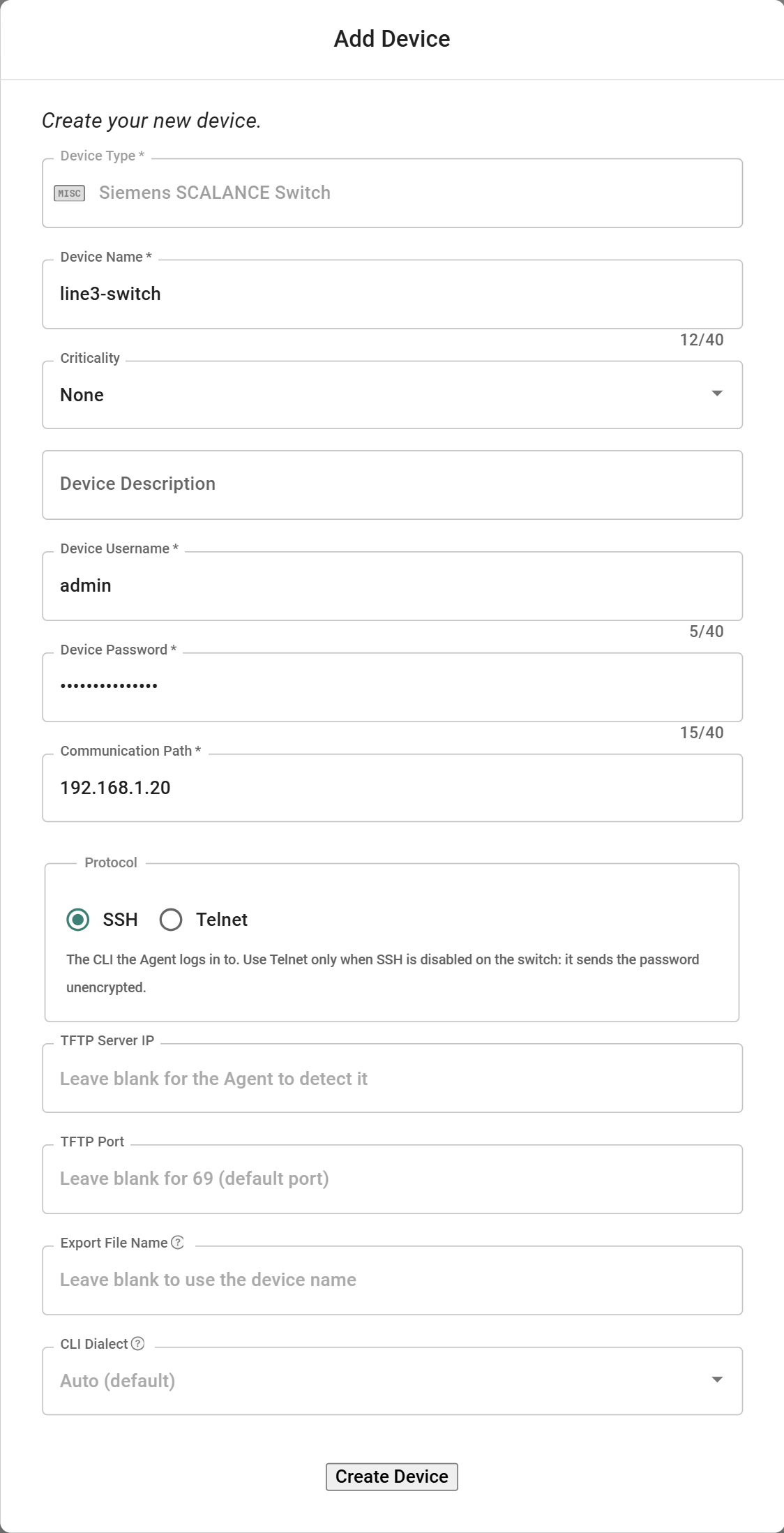
Click *Add a Device* and fill in the switch's details. Only the first four fields are required. Leave the others blank unless one of the sections below says otherwise.
The device form, filled in with the example values
| Field | Required | What to enter |
| ------------------ | -------- | ----------------------------------------------------------------------------------------------------------- |
| Device Name | Yes | A name you will recognise, for example `line3-switch`. Letters, numbers, dashes, underscores and dots only. |
| Communication Path | Yes | The switch's IP address, for example `192.168.1.20`. |
| Device Username | Yes | An administrator account on the switch, for example `admin`. |
| Device Password | Yes | That account's password. |
| Protocol | No | Leave on **SSH**. |
| TFTP Server IP | No | Leave blank. |
| TFTP Port | No | Leave blank. The Agent uses port 69. |
| Export File Name | No | Leave blank to name the files after the device, or enter a name such as `line3-switch`. |
| CLI Dialect | No | Leave on **Auto (default)**. |
Press *Save Device* when complete.
### Communication Path
Enter the switch's IP address, the one you would use to sign in to it.
* ✅ `192.168.1.20`
* ✅ `line3-switch.plant.local` *(a name your network translates to the switch's address)*
* ✅ `192.168.1.20:2222` *(add a port only if the switch's SSH does not use the usual port 22)*
* ❌ `https://192.168.1.20` *(enter the address only, not a web link)*
* ❌ `fe80::1` *(IPv6 addresses are not supported; use the switch's IPv4 address)*
### Export File Name
This names the backup files. The Agent adds the endings itself. With `line3-switch`, an IOS switch saves `line3-switch-running-config.txt` and `line3-switch-config.cfg`.
* ✅ `line3-switch`
* ✅ Blank *(the files are named after the device name)*
* ❌ `line3-switch.cfg` *(the Agent adds the ending, so the file would be called `line3-switch.cfg-config.cfg`)*
* ❌ `line3/switch` *(slashes are not allowed)*
{% hint style="warning" %}
Choose the name once and keep it. The switch stores the file name in its own settings, so a new name appears as a change in the next backup. On X-200, X-300 and X-400 switches, names longer than 21 characters are shortened.
{% endhint %}
### When to fill in the optional fields
Leave these fields blank, or on their default, unless one of these applies:
| Field | Fill it in only when |
| ---------------- | ---------------------------------------------------------------------------------------------------------------------------------------------------------------------------------------------------------------------------------------------------------------------------------------------------------------- |
| Protocol | SSH cannot be turned on in the switch. Then choose **Telnet**, which sends the password unencrypted. |
| TFTP Server IP | The Agent machine has a VPN or a second network card, and the switch was given an address it cannot reach. The job log shows that address on the `agent address the switch sends files to` line. Enter the Agent machine's address on the switch's network. It must be one of the Agent machine's own addresses. |
| TFTP Port | Another program on the Agent machine already uses UDP port 69, such as another TFTP server, or your network only allows a different port. Allow the same port through Windows Firewall. |
| Export File Name | You want the file names to stay the same if the device is renamed in Copia, or the device name is longer than 21 characters on an X-200, X-300 or X-400. |
| CLI Dialect | A backup fails because the Agent could not identify the switch's command-line interface. Choose **IOS** for XB, XC, XP, XR, XM and W models, or **Legacy** for X-200, X-300 and X-400. |
## Job Configuration
### Define the Job(s)
Creating Jobs is similar for all vendor types, and is described in the [Creating Jobs](/docs/devicelink/jobs/creating-jobs.md) section. You can create more than one job for a device if desired.
## Submit the Configuration
Once complete, press *Submit Project Setup* to create the Project, Device(s) and Job(s).
{% hint style="info" %}
Don't forget to enable/disable the [Watch](/docs/devicelink/projects-and-devices.md#watching-projects) button, based on your preferences for project [Notifications](/docs/devicelink/administration/notifications.md).
{% endhint %}
## Backup Results
### What gets saved
| File | What it is |
| --------------------------- | -------------------------------------------------------------------------------------------------------------------------------------------------------------- |
| `-running-config.txt` | The switch's settings as a readable list of commands. Open this file to see what changed. |
| `-config.cfg` | The switch's complete configuration file, exactly as the switch exported it. It is large, so the job page shows it folded with a warning icon. This is normal. |
X-200, X-300 and X-400 switches export their whole configuration as one file, `-config.cfg`.
The Agent saves the files exactly as the switch sends them and never edits them.
### Up to Date or Modified
Every export contains a few lines that change on every backup: the switch's up time, its clock and two checksums. Copia ignores these lines when it decides whether anything changed.
* **Up to Date:** nothing else changed, so Copia keeps the previous version.
* **Modified:** a real setting changed. Copia saves the new files, and the changes appear in both of them. Those lines still show in the file comparison next to the real change, because the files are saved exactly as the switch sent them. This is expected.
### Changes made by the backup itself
To export its configuration, the switch needs to know where to send the files. On every backup the Agent gives the switch its own address, the TFTP port and the file name, and the switch stores them in its settings. Those settings are part of the backup, so:
* Changing the Export File Name or the TFTP Port appears as a change in the next backup.
* So does moving the project to another Agent machine, or a new IP address on the Agent machine.
* After you change the Export File Name, `running-config.txt` can still mention the old name in one backup. This is expected.
## Troubleshooting SCALANCE Backup Errors
When a backup fails, the job run page explains what went wrong and what to do. Most errors are fixed by following that explanation. The errors below need more steps, and the job log shows the exact error quoted under each heading.
### Connecting to the switch
#### Cannot Connect to the Switch
> could not connect to the device
The Agent could not open a connection to the switch.
**Resolution:**
1. Check the **Communication Path** in the device settings.
2. Check that the switch is reachable. On the Agent machine, open **Command Prompt** and run `ping 192.168.1.20` with the switch's address.
* Replies mean the switch is on and the Agent machine can reach it.
* `Request timed out` or `Destination host unreachable` means the switch is off, disconnected, or not reachable from the Agent machine. Check that it has power and a network connection, then ask your network team whether the Agent machine can reach that address.
* The job log has the Agent's own result on the `ICMP ping device` line: `recv=0` means none of its five pings were answered.
3. If the switch answers, make sure SSH is turned on in the switch. If you chose Telnet, make sure Telnet is turned on.
4. [Verify the Agent machine can sign in to the switch](#verify-the-agent-machine-can-sign-in-to-the-switch). If the switch answers a ping but the sign-in fails, a firewall is probably blocking it. Ask your network team to allow TCP port 22 (SSH) or 23 (Telnet), or the port you entered in the Communication Path, from the Agent machine to the switch.
5. Retry the backup.
{% hint style="info" %}
Some networks block ping. If the ping fails but the sign-in in step 4 works, the switch is reachable and only ping is blocked.
{% endhint %}
### The switch's SSH host key
These errors are about the switch's identity, called its SSH host key. The Agent records it on its first SSH backup and checks it on every later one, so a different device at the switch's address cannot receive the password.
#### Host Key Changed
> the device's SSH host key does not match the one recorded
The switch presented a different identity than the one the Agent recorded. This is expected after the switch is replaced or reset to factory settings. It can also mean that another device is using the switch's address, so the Agent stopped before sending the password.
**Resolution:**
1. Check with your network team that the switch was replaced or reset. If nobody knows why the key changed, investigate before you continue.
2. [Open the known\_hosts file](#editing-the-known_hosts-file) and delete the **whole line** that starts with the switch's address.
3. Save the file and retry the backup. The Agent records the switch's new key.
#### Host Key Revoked
> an SSH host key for the device is marked revoked in the agent's known hosts file
A line in the known\_hosts file starts with `@revoked` and names this switch. Someone added it on purpose to block that key, so the Agent refuses to connect.
**Resolution:**
1. Ask whoever manages the Agent machine why the key was revoked.
2. If the switch is a replacement you have checked, [open the known\_hosts file](#editing-the-known_hosts-file) and delete the `@revoked` line and every other line for the switch's address.
3. Save the file and retry the backup. The Agent records the switch's new key.
#### known\_hosts Access Error
> could not read or update the agent's SSH known hosts file
There are two causes. The rest of the message in the job log tells you which one applies.
**Cause 1: the account that runs the Agent changed.** The message ends with something like:
> opening C:\ProgramData\Copia Automation\Copia Agent SSH: Access is denied.
or, when the folder belongs to the previous account:
> C:\ProgramData\Copia Automation\Copia Agent SSH is owned by CONTOSO\old-account, not SYSTEM, Administrators or the agent's account, …
To keep other users from adding their own keys, only SYSTEM, the Administrators group and the account that created the folder can open it. A new service account is therefore locked out. This often follows a change to the service's **Log On** account, for example as described in [FactoryTalk Services Platform connection Error](/docs/devicelink/basic/rockwell-logix-designer.md#factorytalk-services-platform-connection-error).
{% hint style="danger" %}
Do not delete the `Copia Agent SSH` folder or the `known_hosts` file. The file holds the key the Agent trusts for each switch and any keys marked revoked. Without it, the Agent trusts whatever key each switch presents on its next backup.
{% endhint %}
**Resolution:**
You need a Windows administrator on the Agent machine.
1. Open **Services**, right-click **CopiaAgentService** and open **Properties > Log On** to find the account the service runs as. "Local System account" means SYSTEM.\

2. Open **Command Prompt** with **Run as administrator** and give that account Full control of the folder and the file in it. Replace `CONTOSO\svc-copia` with your service account:\
`icacls "C:\ProgramData\Copia Automation\Copia Agent SSH" /grant "CONTOSO\svc-copia:F" /T`
3. Only if the error says the folder or file is owned by your **previous** service account, also make the Administrators group the owner of both:\
`icacls "C:\ProgramData\Copia Automation\Copia Agent SSH" /setowner *S-1-5-32-544 /T`
4. Retry the backup. The Agent locks the folder and file again to SYSTEM, Administrators and the new account, and keeps every recorded and revoked key.
{% hint style="info" %}
`*S-1-5-32-544` is the Administrators group in every Windows language. If the error names an owner that has never run the Copia Agent, do not change the owner: contact Copia Support, because someone else may have created the folder with their own keys.
{% endhint %}
**Cause 2: a line in the file is damaged.** The message names a line number, such as `known_hosts:1`. This usually happens when part of a line was deleted by hand. One damaged line stops every SCALANCE backup on this Agent machine.
**Resolution:**
1. [Open the known\_hosts file](#editing-the-known_hosts-file) and delete that **whole line**.
2. Save the file and retry the backup. If the line belonged to a switch, the Agent records that switch's key again on its next backup.
#### Editing the known\_hosts File
1. Press the Windows key and type **Notepad**. Right-click **Notepad** and choose **Run as administrator**.
2. Choose **File > Open**. In the **File name** box, paste `C:\ProgramData\Copia Automation\Copia Agent SSH\known_hosts` and press Enter.
3. Each line is one key. It starts with the switch's address as entered in Copia, followed by the key type and the key:\
`192.168.1.20 ecdsa-sha2-nistp521 AAAAE2VjZHNhLXNoYTItbmlzdHA1MjEAAAA...`\
If you entered a port in the Communication Path, the line starts with `[192.168.1.20]:2222` instead.
4. Delete **whole lines** only. Never delete part of a line.
5. Choose **File > Save**.
### Receiving the files
#### No Windows Firewall Rule
> no enabled Windows Firewall rule allows inbound UDP on the TFTP port
The switch could not send its files, and Windows Firewall on the Agent machine has no rule that lets them in.
**Resolution:**
1. Add the rule described in [Allow SCALANCE backups through Windows Firewall](#allow-scalance-backups-through-windows-firewall). Use the **TFTP Port** from the device settings, or 69 if it is blank.
2. Retry the backup.
#### No Configuration File Arrived
> no configuration file arrived over TFTP
The switch did not deliver its files to the Agent machine.
**Resolution:**
1. Check that the Windows Firewall rule exists and is enabled. See [Allow SCALANCE backups through Windows Firewall](#allow-scalance-backups-through-windows-firewall).
2. Check that the switch can send to the Agent machine. A firewall or router between them must allow UDP on the TFTP port (69 by default) from the switch to the Agent machine.
3. Check the address the switch was given, on the `agent address the switch sends files to` line of the job log. If it is a VPN address or another address the switch cannot reach, set **TFTP Server IP** to the Agent machine's address on the switch's network. See [When to fill in the optional fields](#when-to-fill-in-the-optional-fields).
4. Retry the backup.
{% hint style="info" %}
When the Agent runs with administrator rights, as it does by default as a Windows service, it checks Windows Firewall for you and shows [No Windows Firewall Rule](#no-windows-firewall-rule) if the rule is missing. Without administrator rights it cannot read the firewall settings, so a missing rule shows as this error instead.
{% endhint %}
#### TFTP Port Already in Use
> TFTP port is already in use on the agent host
Another program on the Agent machine is using the TFTP port, often another TFTP server.
**Resolution:**
1. Stop the other program, or
2. Enter a free port in **TFTP Port** in the device settings, and allow that port through Windows Firewall.
3. Retry the backup. A new port appears as a change in the next backup, as described in [Changes made by the backup itself](#changes-made-by-the-backup-itself).
### Sending a Failed Backup to Copia Support
1. In Copia, open the failed job run.
2. Click **Download Debug Files**.
3. Send the file to Copia Support with a link to the job run.
For a failed backup, the debug files include a record of the Agent's conversation with the switch, with the password removed.
---
# Agent Instructions
This documentation is published with GitBook. GitBook is the documentation platform designed so that both humans and AI agents can read, navigate, and reason over technical content effectively. Learn more at gitbook.com.
## Querying This Documentation
If you need additional information that is not directly available in this page, you can query the documentation by asking a question.
Perform an HTTP GET request on the following URL with the `ask` and `goal` query parameters:
```
GET https://docs.copia.io/docs/devicelink/basic/siemens-scalance.md?ask=&goal=
```
`ask` is the immediate question: it should be specific, self-contained, and written in natural language.
`goal` is what the user is ultimately trying to achieve, the reason they need the answer. Sharing it helps GitBook give you a better, more relevant answer. A goal is most helpful when it describes the outcome the user wants rather than restating the question. For example, with `ask=how do I create an API token`, a goal like `automate deployments from our CI pipeline` lets GitBook tailor the answer to that use case.
The response will contain a direct answer to the question and relevant excerpts and sources from the documentation.
Use this mechanism when the answer is not explicitly present in the current page, you need clarification or additional context, or you want to retrieve related documentation sections.